How to Put Your AI Character in Any Video
SocialSight1 min read
On this page
To put your AI character in a video, create the character first with a reference image and a short description. Then make a still image of your character in the scene you want, and turn that image into video. Starting from an image of your character, instead of text, keeps their look the same.
The easiest way to make great AI character videos is to flip the usual order. Instead of describing a whole scene and hoping your character shows up right, build your character first, then put them in the moment.
Step 1: Build your character
Start with a reference image and a short description of your character. If you haven't made one yet, build one in Character Factory.
Character reference sheet of Milo, a small orange cat with green eyes, a white chest patch, and a red knitted scarf. Front view, side view, and face close-up on a plain light-gray background.
Step 2: Pick your moment
A "moment" is the place, the time, the mood, and one thing your character does. Keep it to one action per clip.
Step 3: Create a still of your character in the moment
Make an image of your character in the scene first. Check that their signature details look right before you animate anything.
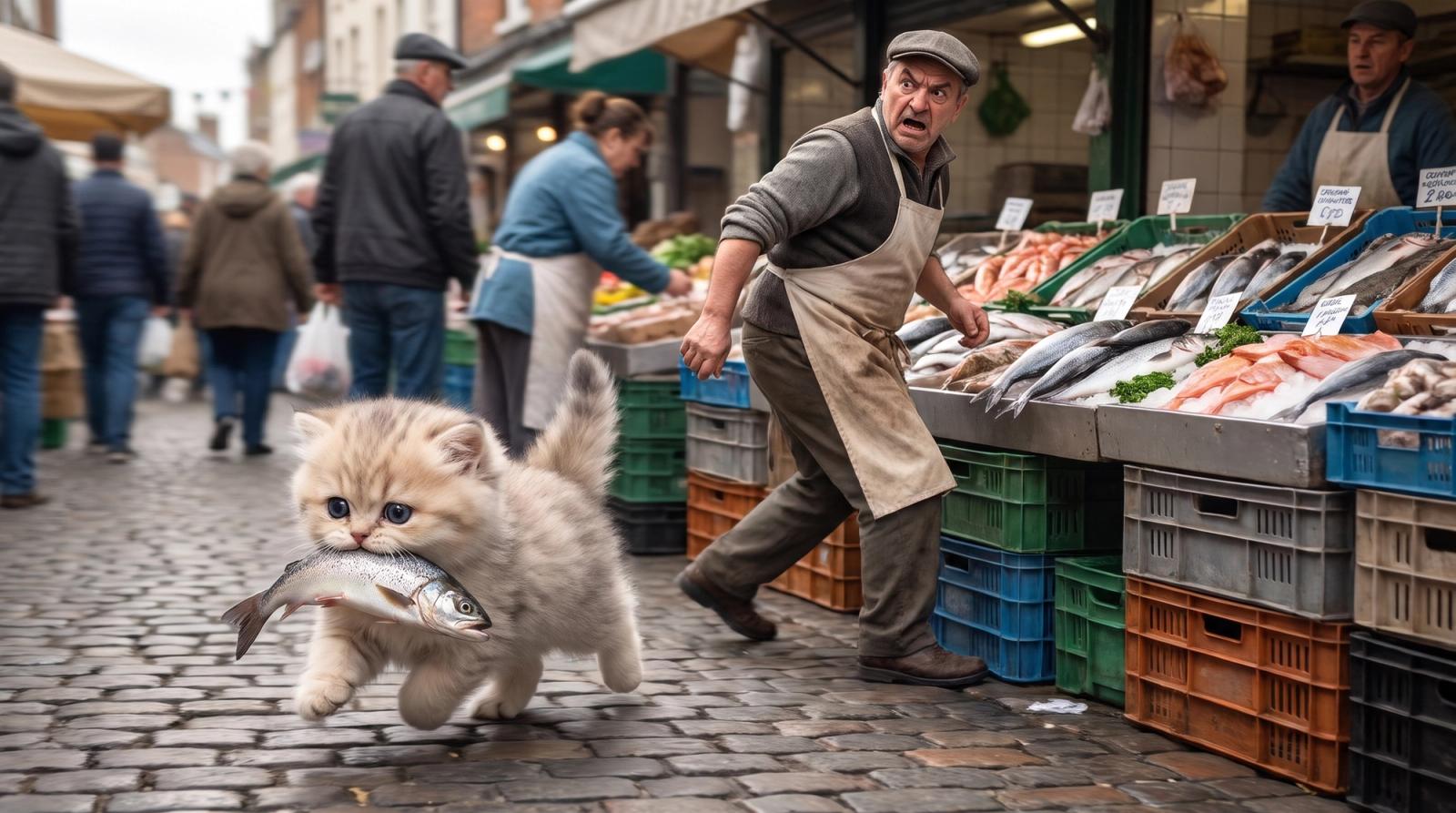
Milo, a small orange cat with green eyes, a white chest patch, and a red knitted scarf, at a busy fish market in the early morning, soft golden light, reaching toward a fish on the counter.
Step 4: Bring it to life
Turn your still into video with image-to-video, using a model like Kling, Seedance, or Gemini Omni 1.2 Flash on SocialSight. Describe just the motion: "Milo grabs the fish and runs off, the fish seller turns around." Short clips of about 5–10 seconds keep your character steadiest. With Gemini Omni 1.2 Flash you can also edit the clip by chatting: ask for a new camera angle or a small change, and keep the rest the same.
FAQ
How do I put my AI character in a video?
Create your character first, make a still image of them in the scene you want, then turn that image into video with image-to-video.
How do I keep my character the same in every video?
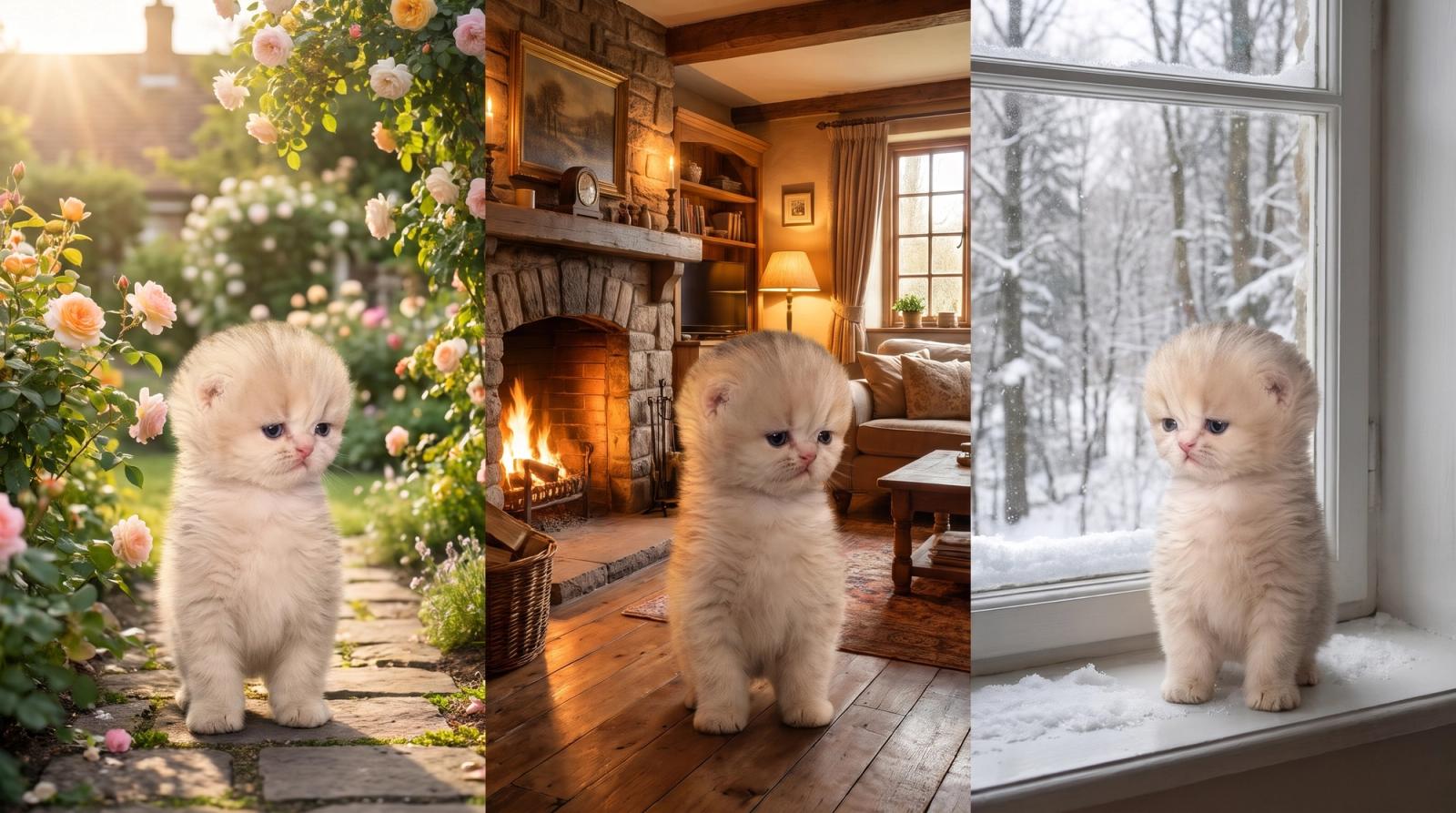
Start every clip from the same reference image and character description, and only change the moment: the place, time, and action.
Is image-to-video better than text-to-video for characters?
Share
XLinkedInFacebookEmailWhatsApp